The Sunday letter · MyTextStoryIssue 01081522283337404345474848
MyTextStory.
Loading the fixes
Tips
Five settings to change on a new phone
Ten minutes on day one that make your new phone safer, faster and easier to recover.
- KindTips
- DateJul 06, 2026
- Read time4 min
Tips
Five settings to change on a new phone
Ten minutes on day one that make your new phone safer, faster and easier to recover.
- KindTips
- DateJul 06, 2026
- Read time4 min
Tips
Five settings to change on a new phone
Ten minutes on day one that make your new phone safer, faster and easier to recover.
- KindTips
- DateJul 06, 2026
- Read time4 min
TipsJul 06, 20264 min read
A new phone is exciting, and it is tempting to start installing apps straight away. Spend ten minutes on these settings first. They protect your data, save battery and make life much easier if the phone is ever lost.
1. Screen lock
Set a six-digit PIN or a strong password, then add your fingerprint or face. Avoid simple patterns and birthdays. A locked phone protects your photos, messages and banking apps if it is stolen.
2. Find my device
Turn on Find My on iPhone, or Find My Device on Android, and check it works by opening the website on a computer. If the phone is ever lost, you can see it on a map, make it ring or erase it remotely.
“The best time to set up backups and Find My Device is before you ever need them.
3. Backups
Turn on automatic backup for photos and phone settings, and set the WhatsApp chat backup to run daily over Wi-Fi.
Make sure the first backup completes before you wipe or sell your old phone.
4. Two-step verification
Turn on two-step verification for your Google or Apple account, and for WhatsApp in Settings, Account, Two-step verification. It stops anyone taking over your accounts with a stolen code.
5. Notifications and updates
When apps ask to send notifications, say no to anything that is not important. Fewer notifications means fewer distractions and a battery that lasts longer.
Finally, install system updates as soon as they arrive. Most updates fix security problems, and a phone that stays up to date stays safer for years.
— MyTextStory
All posts
TipsJul 06, 20264 min read
A new phone is exciting, and it is tempting to start installing apps straight away. Spend ten minutes on these settings first. They protect your data, save battery and make life much easier if the phone is ever lost.
1. Screen lock
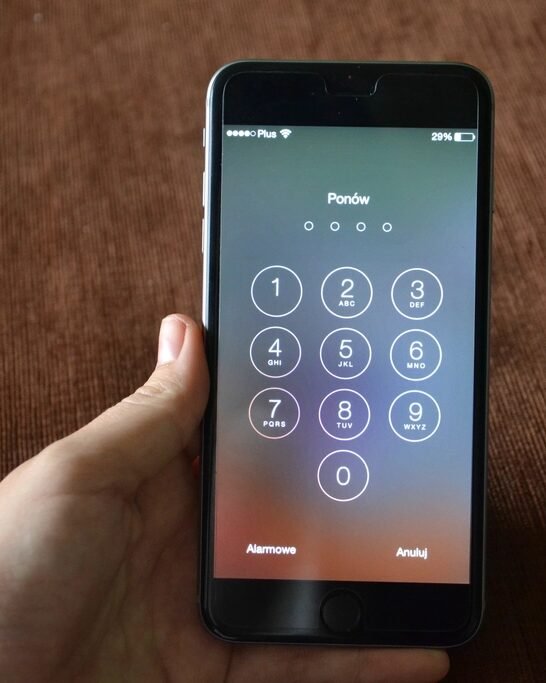
Set a six-digit PIN or a strong password, then add your fingerprint or face. Avoid simple patterns and birthdays. A locked phone protects your photos, messages and banking apps if it is stolen.
2. Find my device
Turn on Find My on iPhone, or Find My Device on Android, and check it works by opening the website on a computer. If the phone is ever lost, you can see it on a map, make it ring or erase it remotely.
“The best time to set up backups and Find My Device is before you ever need them.
3. Backups
Turn on automatic backup for photos and phone settings, and set the WhatsApp chat backup to run daily over Wi-Fi.
Make sure the first backup completes before you wipe or sell your old phone.
4. Two-step verification
Turn on two-step verification for your Google or Apple account, and for WhatsApp in Settings, Account, Two-step verification. It stops anyone taking over your accounts with a stolen code.
5. Notifications and updates
When apps ask to send notifications, say no to anything that is not important. Fewer notifications means fewer distractions and a battery that lasts longer.
Finally, install system updates as soon as they arrive. Most updates fix security problems, and a phone that stays up to date stays safer for years.
— MyTextStory
All postsTipsJul 06, 20264 min read
A new phone is exciting, and it is tempting to start installing apps straight away. Spend ten minutes on these settings first. They protect your data, save battery and make life much easier if the phone is ever lost.
1. Screen lock
Set a six-digit PIN or a strong password, then add your fingerprint or face. Avoid simple patterns and birthdays. A locked phone protects your photos, messages and banking apps if it is stolen.
2. Find my device
Turn on Find My on iPhone, or Find My Device on Android, and check it works by opening the website on a computer. If the phone is ever lost, you can see it on a map, make it ring or erase it remotely.
“The best time to set up backups and Find My Device is before you ever need them.
3. Backups
Turn on automatic backup for photos and phone settings, and set the WhatsApp chat backup to run daily over Wi-Fi.
Make sure the first backup completes before you wipe or sell your old phone.
4. Two-step verification
Turn on two-step verification for your Google or Apple account, and for WhatsApp in Settings, Account, Two-step verification. It stops anyone taking over your accounts with a stolen code.
5. Notifications and updates
When apps ask to send notifications, say no to anything that is not important. Fewer notifications means fewer distractions and a battery that lasts longer.
Finally, install system updates as soon as they arrive. Most updates fix security problems, and a phone that stays up to date stays safer for years.
— MyTextStory
All posts